

If you sell an ebook, workbook, pattern, report, or printable as a PDF, you probably want to make sharing less attractive without making the file frustrating for a legitimate buyer. Buyer-specific stamping can help: each delivered copy can carry the buyer’s email and an order reference, while your original PDF stays unchanged.
That is a deterrent, not digital rights management. A stamp can identify a buyer’s copy and discourage casual forwarding. It cannot stop someone from taking screenshots, copying content, printing and rescanning pages, or trying to remove the mark. In this guide, we’ll show you how PDF stamping can help protect the content you sell, what it cannot do, and how to combine it with controlled delivery. We’ll use Northstar Studio’s Studio Planner PDF as a practical example.
Step 1: Choose a deterrent that matches the risk
A generic watermark usually identifies the publisher: your logo, shop name, or copyright notice appears on every copy. That can establish ownership, but one buyer’s file looks like every other buyer’s file.
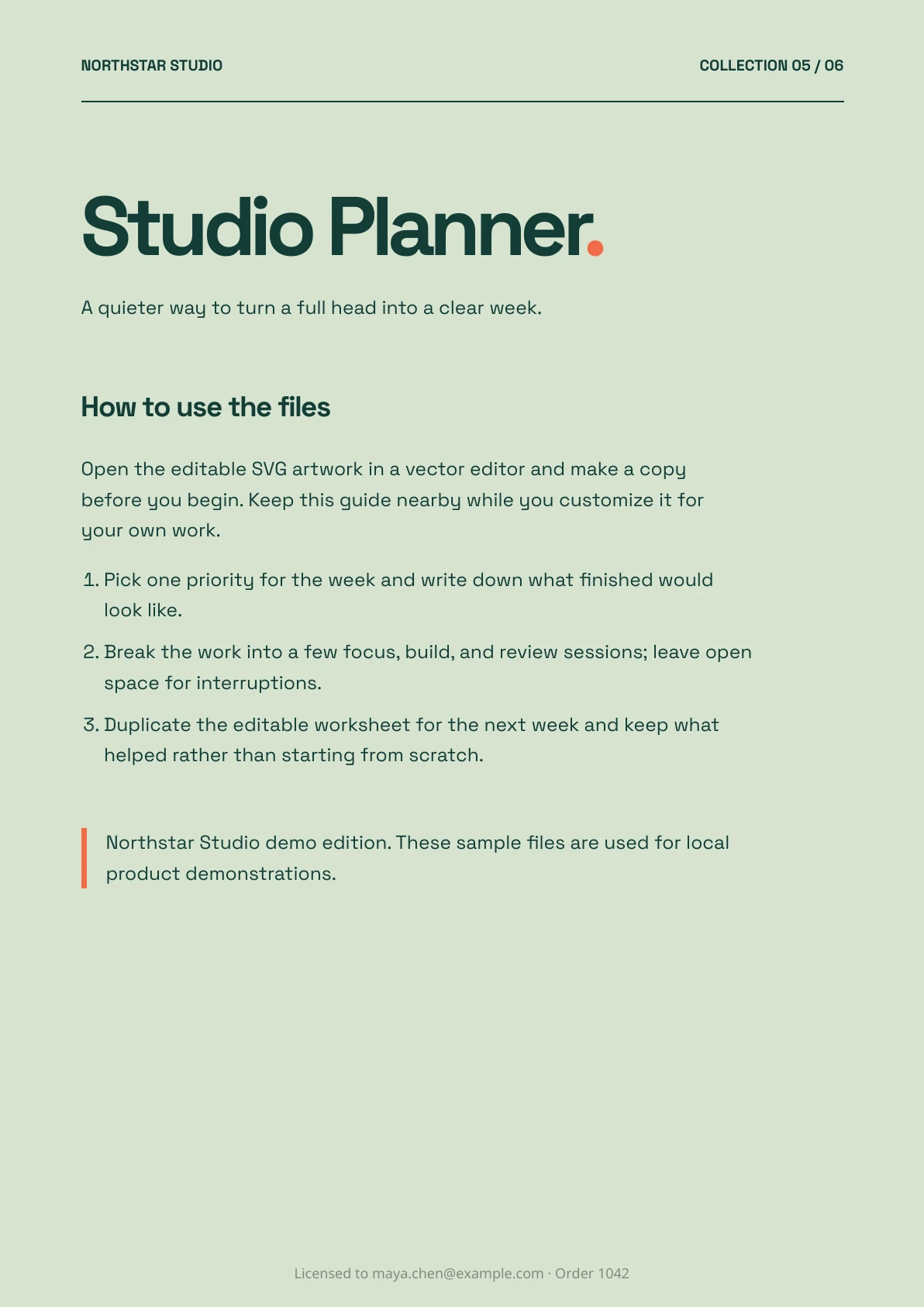
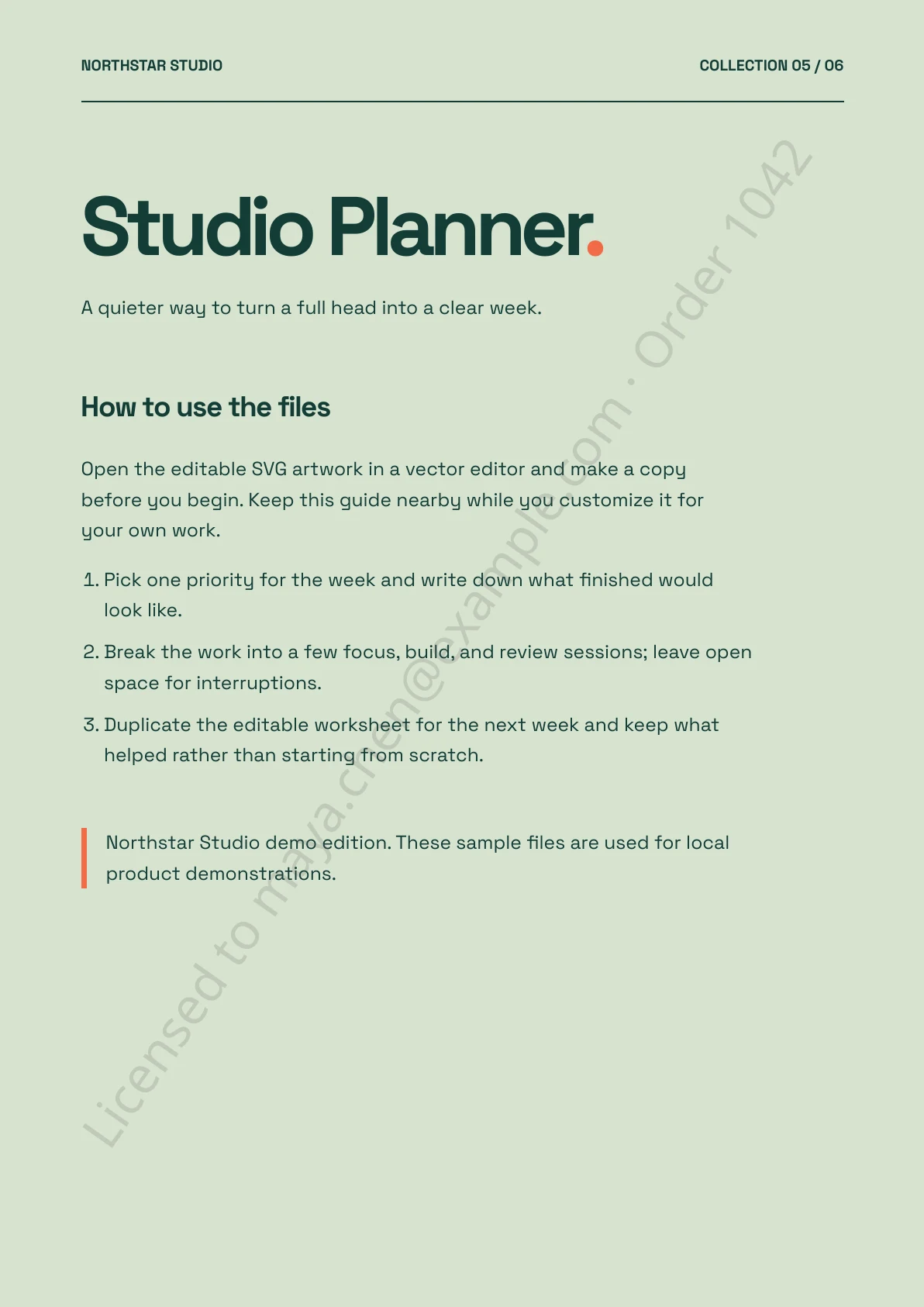
A buyer-specific stamp is generated for a particular purchase. In the Northstar example, DeliveryKit adds Licensed to maya.chen@example.com · Order 1042. If that copy is shared, the seller has something useful to trace. The buyer also has a visible reminder that their copy is personal.
The placement changes the trade-off:
- A subtle footer keeps the reading experience clean, but someone may be able to crop it from a page.
- A prominent diagonal is harder to overlook or crop away, but it sits over the document’s design.
The samples below were rendered from the same one-page Northstar Studio source PDF using DeliveryKit’s actual stamping process. The source file has no buyer details; the footer and diagonal copies do.
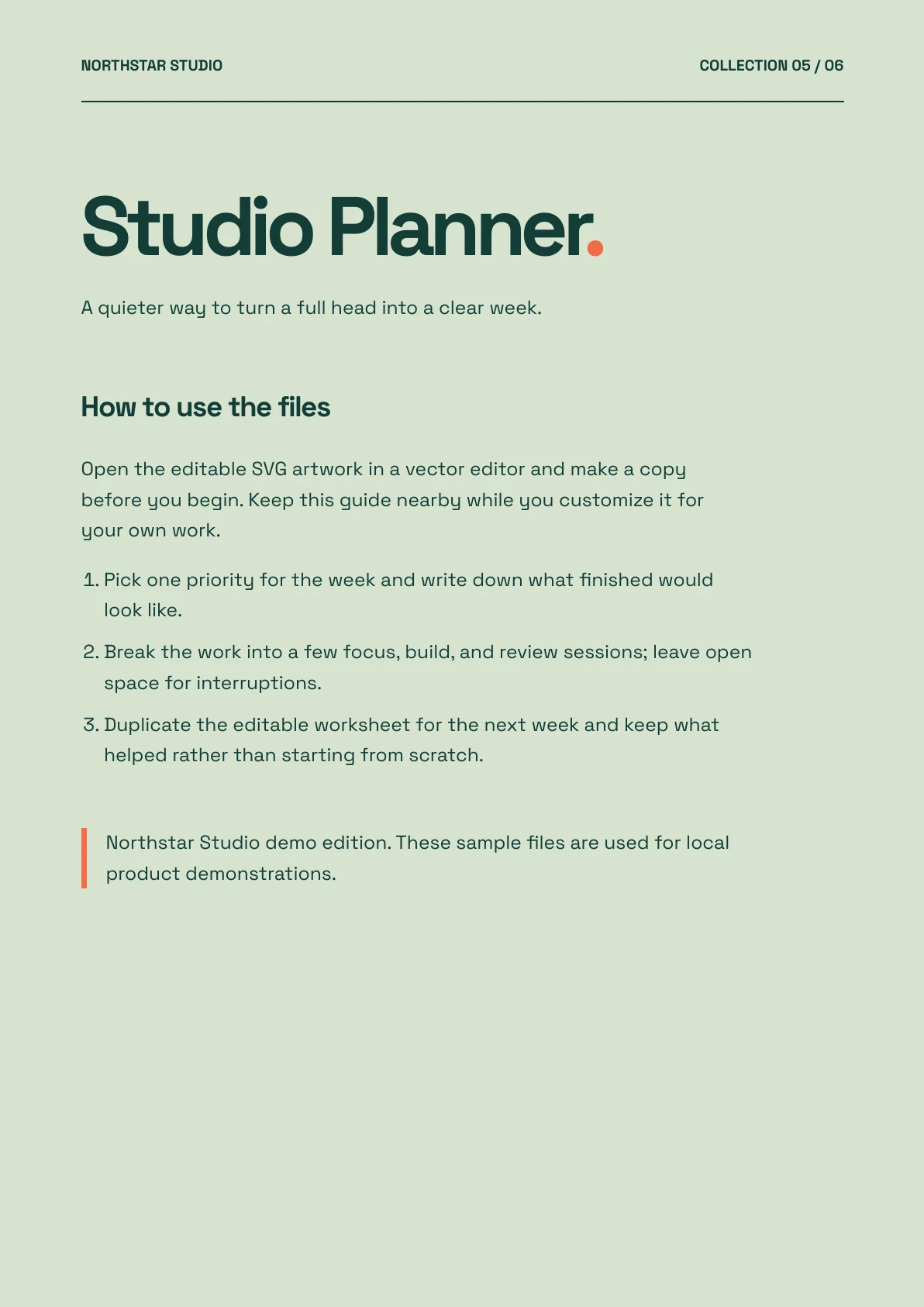 Open actual PDF
Subtle footerPDF · 24 KB
Open actual PDF
Subtle footerPDF · 24 KB
 Open actual PDF
Prominent diagonalPDF · 24 KB
Open actual PDF
Prominent diagonalPDF · 24 KB
 Open actual PDF
Use the least intrusive style that fits what you sell. A footer often suits reading material. A diagonal stamp may be a better fit for high-value worksheets, licensed research, or files where easy cropping would defeat the point.
Step 2: Keep the original PDF unchanged
Do not permanently watermark your only source file. Keep a clean master so you can correct it, create a new edition, or change your delivery policy later. Personalize a copy when the buyer requests it instead.
In DeliveryKit, upload the clean PDF as a file, then open Settings → Workspace. Under PDF stamping, turn on Stamp PDF downloads and choose Subtle footer or Prominent diagonal. The setting applies to uploaded PDFs in that workspace; other file types are delivered normally. You can select a PDF and choose Preview PDF before saving the style.
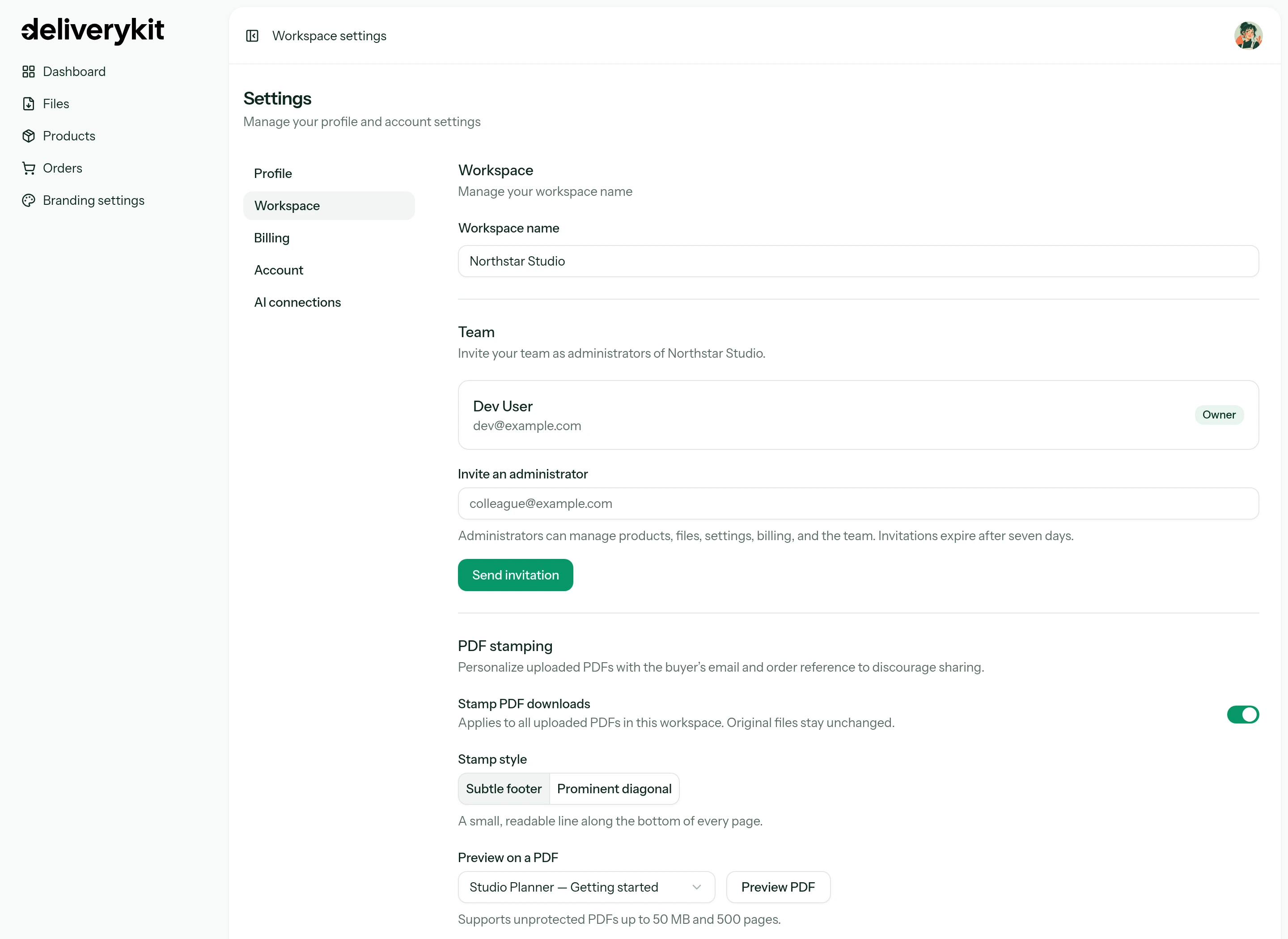
DeliveryKit supports unprotected uploaded PDFs up to 50 MB and 500 pages. Preview the whole document, not only its cover: a footer can collide with page numbers or print marks, while a diagonal stamp can cross important diagrams or form fields.
Step 3: Add buyer details when the file is requested
The useful part of buyer-specific stamping happens after a purchase. DeliveryKit already knows which fulfilled order the portal belongs to and which buyer email has access. When that buyer requests an eligible PDF, DeliveryKit prepares a personalized copy containing the email and order reference, then delivers that copy under the original filename.
This avoids creating a separate permanent upload for every customer. It also means your product can contain a mix of resources. Northstar’s Studio Planner includes editable SVG artwork and a PDF guide; only the PDF is stamped.
Use an address and reference that are useful without putting unnecessary personal information on every page. DeliveryKit uses the buyer email and internal order reference. Tell buyers about personalization in your product description or license terms so it is not a surprise after payment.
Step 4: Put the PDF behind controlled delivery
Stamping is more useful when the source file is not sitting at a permanent public URL. Send the buyer to a portal that checks their access before serving the file.
DeliveryKit’s delivery email links to a tokenized buyer portal. The portal collects the resources included with that fulfilled purchase, as the Northstar order below shows. When the buyer chooses Download, DeliveryKit checks the portal access and prepares the stamped PDF. With object storage, the final file URL is time-limited rather than a permanent public file address.
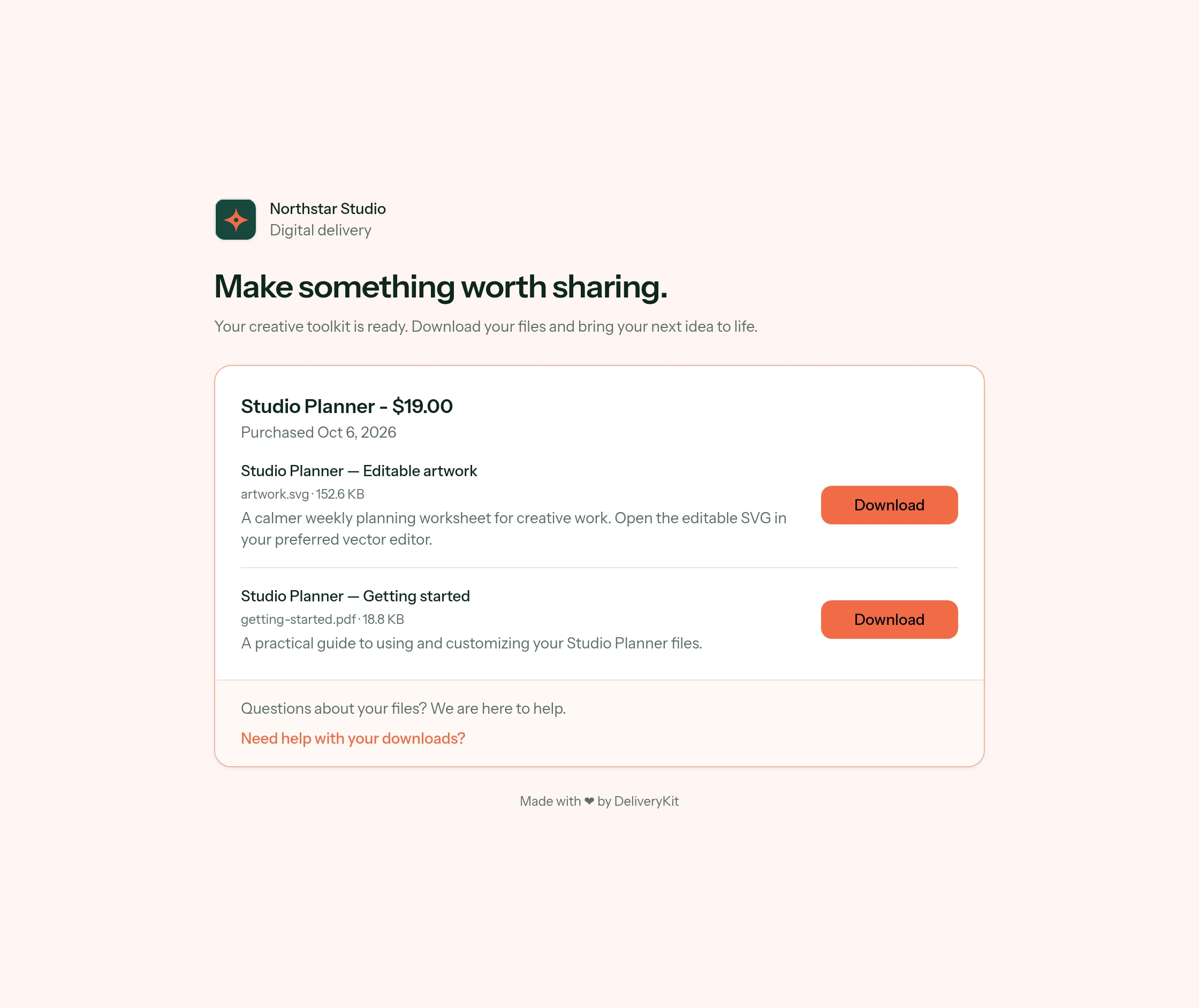
Controlled links reduce casual discovery and let you revoke future portal access. They do not recall a file someone has already downloaded, stop a buyer from sharing their portal link while it remains valid, or prevent them from uploading the downloaded PDF elsewhere. The stamp is the part that stays with the delivered copy.
Step 5: Test the exact buyer experience
Before launch, check more than the settings screen:
- Preview the actual PDF with both stamp styles and inspect text-heavy, illustrated, and nearly empty pages.
- Make a Sandbox purchase with an email address you can access.
- Open the delivery email and buyer portal rather than copying the source file directly from storage.
- Download the PDF and confirm the buyer email and order reference are legible on every page.
- Check that the filename, PDF links, forms, and print layout still work.
- Confirm that non-PDF resources in the same product download unchanged.
Also keep the promise proportionate. Say that stamping discourages casual sharing or identifies a buyer’s copy. Do not claim that it prevents copying, guarantees attribution, or makes a PDF impossible to remove or edit.
If you still need to set up payment and automatic file delivery, start with how to sell digital downloads with Stripe Checkout. For the buyer’s view after payment, see how customers receive their downloads.