

Most digital products should be easy to download again. Buyers change laptops, lose files, and come back months later. Sometimes you also want clear purchase terms: a set number of downloads, or access that ends after a course, season, or license period. Download limits and access periods let you set those terms per product, while DeliveryKit tracks them for every order.
They are purchase terms, not copy protection. A limit makes a forwarded portal link much less useful and gives you a clear record of what each buyer downloaded. It cannot stop someone from copying a file they have already downloaded. In this guide, we’ll set up Northstar Studio’s Studio Planner with 5 downloads per file and a year of access, then follow what the buyer and the seller see.
Step 1: Decide whether a limit fits the product
DeliveryKit leaves every product unlimited unless you change it. That is the right choice for most ebooks, templates, and artwork: a legitimate buyer should never hit a wall when they reinstall a font or move to a new computer.
Limits are a better fit when access is part of what you sell:
- Time-bound material, such as a course, cohort workbook, or seasonal pack, where access for a set period is the offer.
- Licensed assets sold with an agreed number of downloads.
- Higher-value files where a portal link passed around a group chat would otherwise give everyone unlimited copies.
If you do set a limit, be generous. The allowance applies to each file separately, so a product with an artwork file and a PDF guide gives the buyer a full allowance for both. Five downloads per file and a year of access covers normal re-downloads while still ending the open-ended access.
Tell buyers the terms before they pay. Add a line such as “Includes 5 downloads per file for 12 months” to the product description, and repeat it in the delivery email if you customize it.
Step 2: Set download access on the product
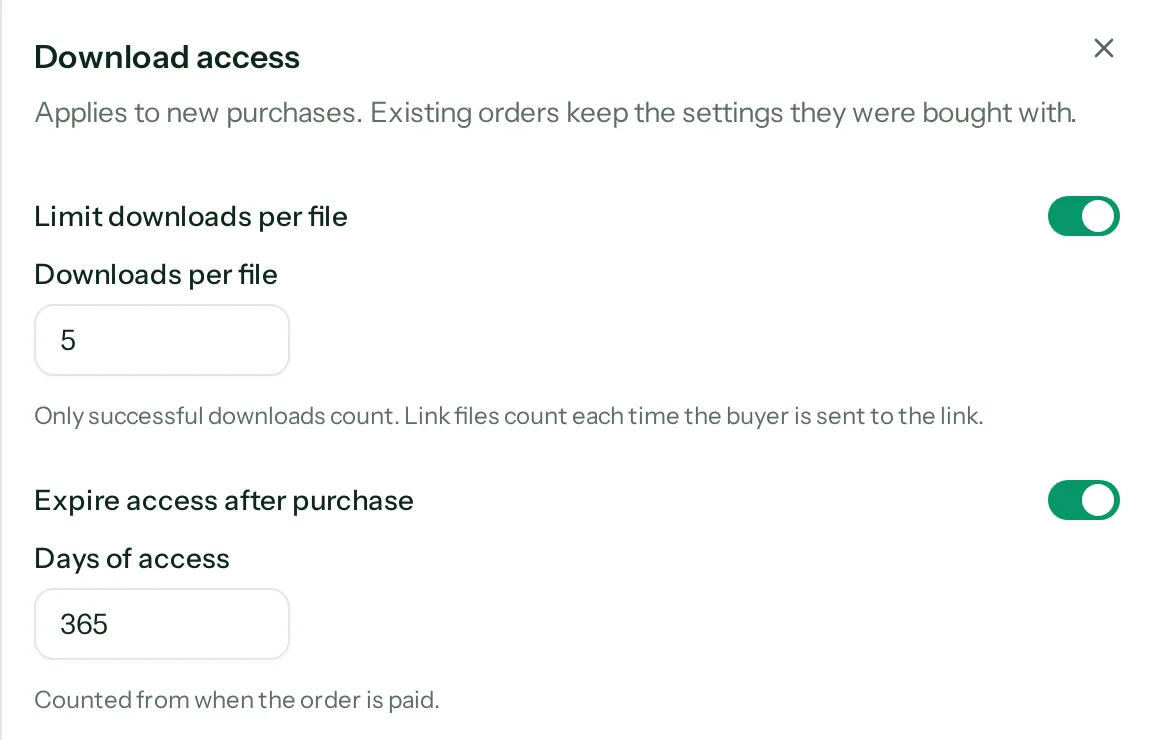
In DeliveryKit, open Products and choose the product. The Download access section shows its current terms. Once the product delivers files, choose Edit access:
- Turn on Limit downloads per file and enter an allowance from 1 to 1,000.
- Turn on Expire access after purchase and enter the number of days, from 1 to 3,650.
Choose Save access. Either setting can be used on its own; leaving a switch off keeps that part unlimited.
For a bundle, set access on the bundle product itself. Its terms apply to every file in the bundle, while the included products’ own settings apply only when someone buys them separately.
Step 3: Know what counts as a download
The count is meant to reflect files the buyer actually received, not clicks that went nowhere:
- Files DeliveryKit hosts count when DeliveryKit sends the file. If a file cannot be delivered, for example because storage is unavailable, the attempt does not count.
- Link resources hosted elsewhere count each time DeliveryKit sends the buyer to the link, because DeliveryKit cannot see whether that download finished.
- Stamped PDFs count once the personalized copy is delivered. The wait while DeliveryKit prepares the copy does not count. See how to protect PDFs you sell for stamping itself.
- Video previews in the portal do not count. Once access has expired or that video’s limit is used up, the portal stops offering new previews; a preview that is already playing may finish.
The allowance is enforced on the order, not on a particular link. Clicking quickly or opening several tabs cannot go past the limit, and a fresh login link, or a new link you send the buyer, does not reset the count or extend access.
Step 4: Existing orders keep the terms they were bought with
DeliveryKit saves the product’s download limit and access period onto each order at the moment of purchase. If you later raise, lower, or remove them, only new purchases get the new terms. Orders placed before you turned on a limit stay unlimited.
The access period starts when the order is paid. Northstar’s buyer paid on October 2, 2026, so with 365 days their Studio Planner files are available until October 2, 2027, whatever happens to the product settings in the meantime.
Step 5: Check what the buyer sees
The buyer portal shows the terms next to the files they apply to. Each purchase lists when it was bought and, if it has an access period, when access ends. Files with a limit show how many downloads are left beside the Download button, and a file whose allowance is used shows Limit reached instead.
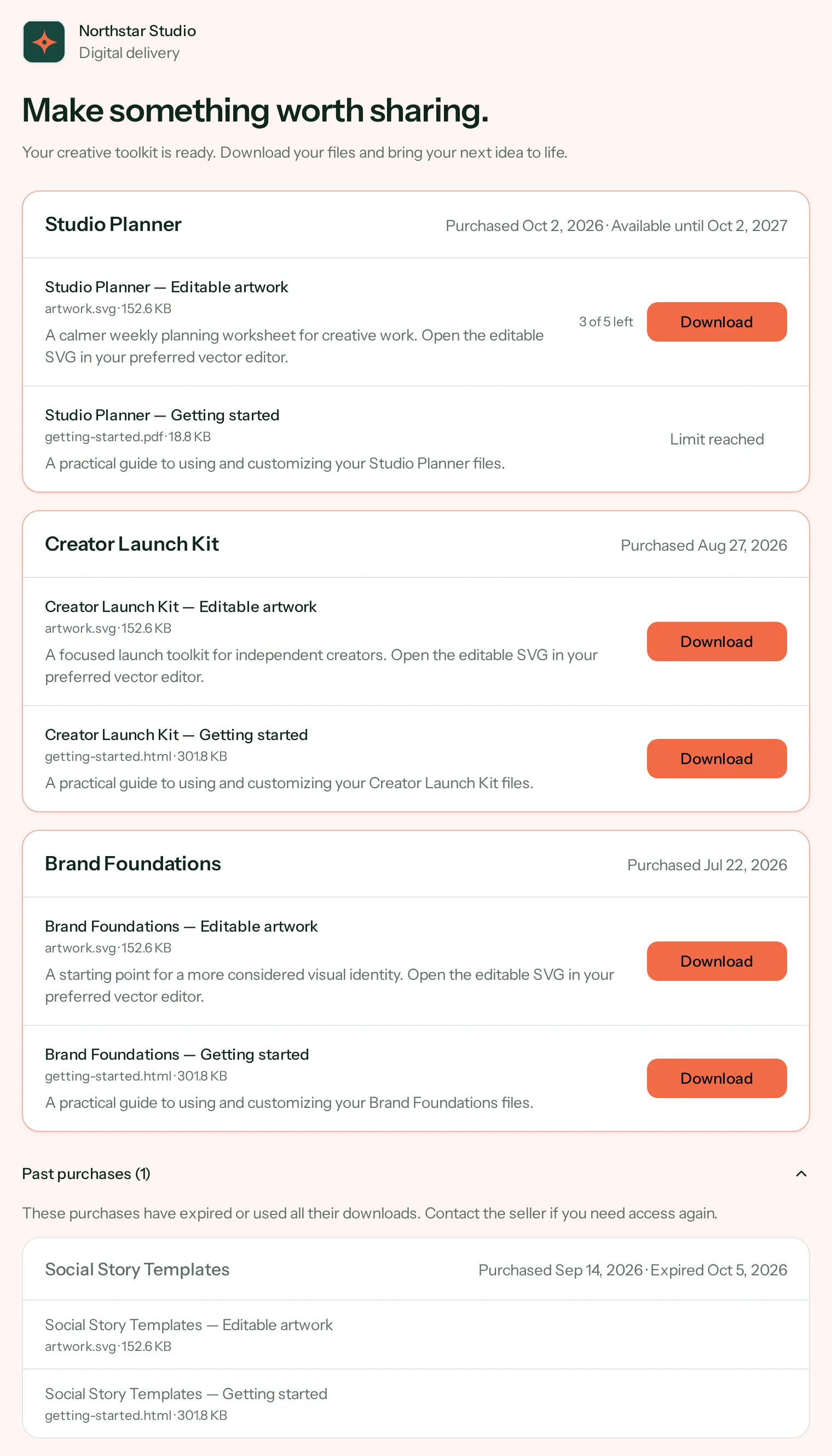
Purchases that have expired, or where every file has reached its limit, move to a Past purchases section at the bottom, marked with the date access ended or All downloads used. The buyer can still sign in and see everything they bought; they just cannot download those files. If they try to download a file again after its limit or after access ends, DeliveryKit returns them to the portal with a short explanation instead of an error.
Step 6: Help a buyer who needs more
Limits work best when exceptions are easy. Open Orders and choose the order. The Download access section shows the order’s terms and, for each file, how many times it has been downloaded and when.
- Reset count sets one file’s count back to zero. The order keeps its limit, so the buyer gets a fresh allowance for that file.
- Extend access adds days to the order. If access has already ended, the extension starts from today.
- Remove expiration gives the order access with no end date.
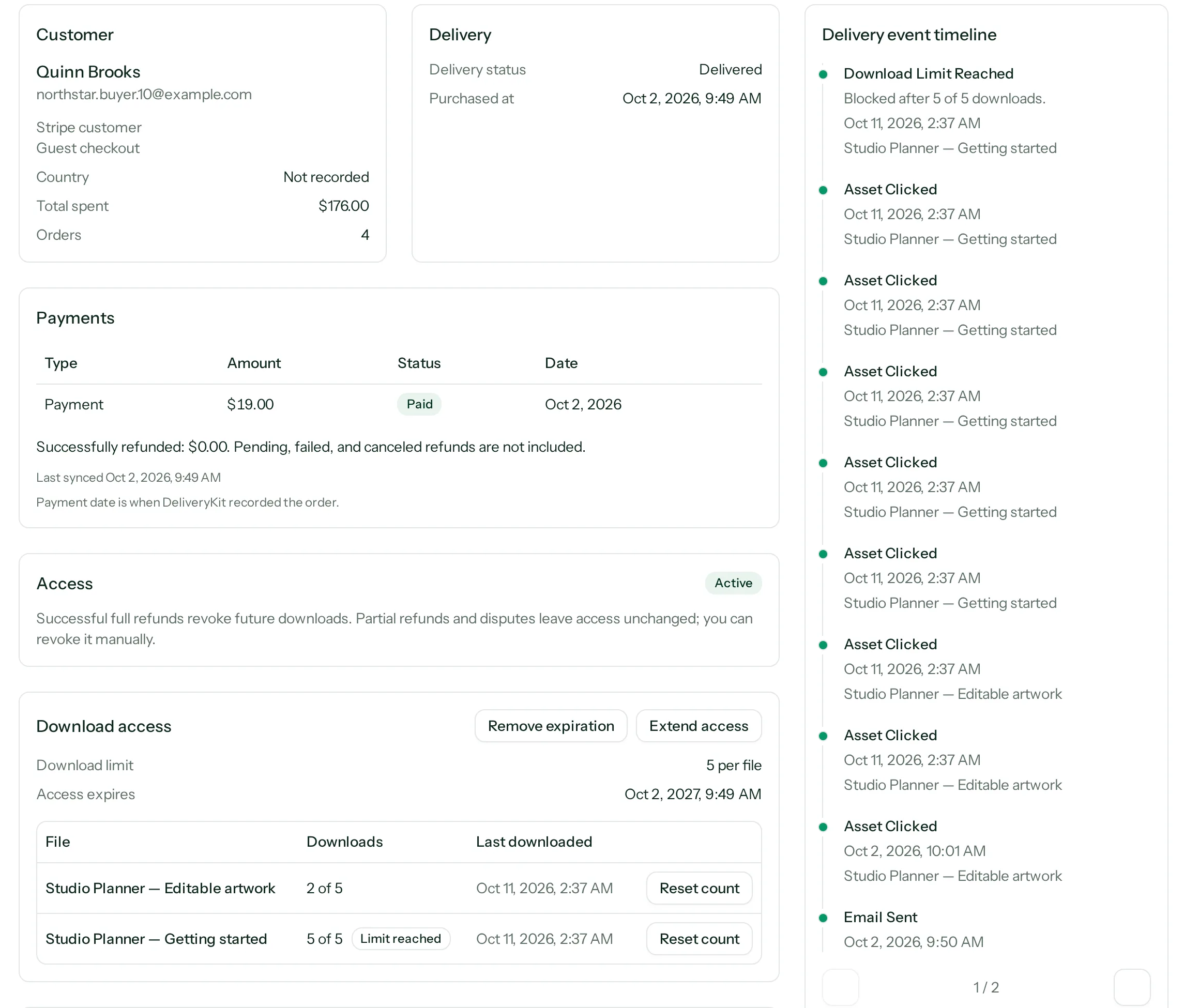
The delivery event timeline records when a limit blocks a download, when access expires, and every reset or change to the expiration date, so you can see what happened before you answer a support email.
These actions are separate from Revoke access, which you might use after a full refund. Revoking blocks the whole order regardless of its limits. Restoring revoked access does not reset download counts or change the expiration date.
Test it before you launch
- Set the limit and access period on a product, then make a Sandbox purchase with an email address you can access.
- Open the buyer portal from the delivery email and download each file. Check that the remaining count goes down.
- Download one file until it shows Limit reached, and confirm the blocked attempt appears in the order’s timeline.
- Use Reset count on that file and confirm the buyer can download it again.
- Read the product description and delivery email as a buyer would, and make sure the terms are stated before checkout.
For the buyer’s side of delivery, see how customers receive their downloads. If you are still setting up your first product, start with how to sell digital downloads with Stripe Checkout.